Sendy

Got Sendy? Get started.


Setting up Sendy

Installing Sendy is a pretty simple process. Upload the files, create a database, set a few settings and the rest are a matter of clicking around your Amazon Web Services console. The instructions are described in the following easy to follow steps.

If you require installation service, we do provide it for a fee. Simply reply the license email sent to you after purchase.


Step 1. config.php

  1. Open the file → includes/config.php
  2. Set the compulsory settings (installation URL and MySQL credentials)
  3. Set the optional settings if you need (MySQL port and character set)

Step 2: Upload Sendy

  1. Upload all files to your server.
  2. Make sure the file, .htaccess (from the main directory), is uploaded to your server as well (may be hidden if you're using a Mac).

Step 3. Set file permissions of uploads folder

Image upload via WYSIWYG editor, attachments and CSV uploads are only possible if you set the file permission of /uploads/ folder to 777.

Step 4. Install Sendy

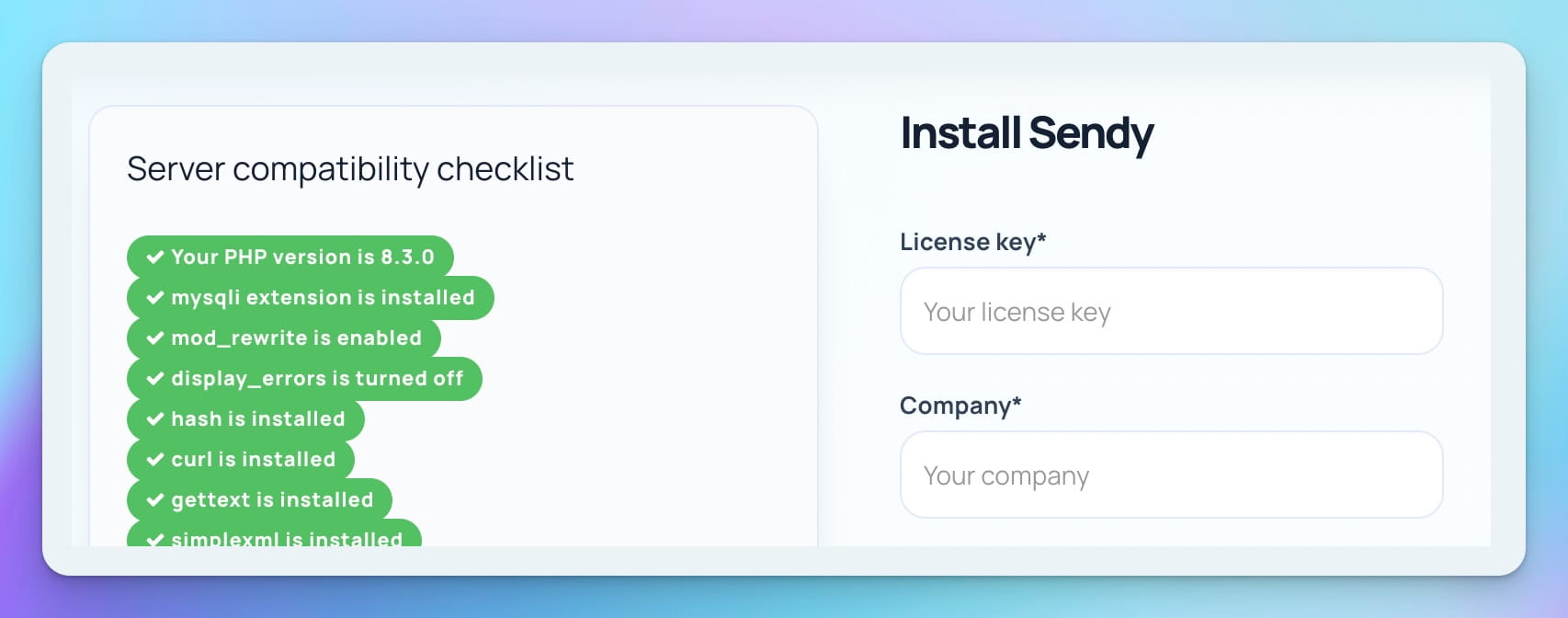
  1. Visit your Sendy installation. If you uploaded Sendy to http://yourdomain/sendy, visit this link to install.

    Note: If your installation page fails to load, visit http://your_sendy_installation_url/_compatibility.php?i=1 to see which extensions are not installed for PHP on your server and request your host to install it.

  2. Your License key is included in the email sent to you after you made your purchase.
  3. You'll be asked to specify your Email and Password. These will be your login credentials for Sendy.
  4. Fields marked with aesterisks are compulsory. For AWS Access Key ID and AWS Secret Access Key, you can fill these in later if you have not signed up for Amazon Web Services yet (we'll cover this in the next step).
  5. Click the Install now button to proceed.

    Note: Once installed, Sendy will redirect you to the login page. If your login page fails to load and shows only a "lock" icon, `gettext extension` is not installed for PHP on your server. Request your host to install it.

Step 5. Sign up for Amazon Web Services (AWS) & get your Access Credentials

There are many services under Amazon Web Services (AWS), Amazon SES is one of them. In order to use SES, you need to have an AWS account.

  1. Visit Amazon Web Services (AWS) and sign up for an AWS account.

  2. Once signed up, you need to retrieve your 'Access Credentials' from your AWS account. These are the set of "keys" to allow Sendy to send emails via your Amazon SES account. Start by creating an IAM (Identity and Access Management) user in your IAM console.

    Click the Create New Users button:

  3. Type "sendy" in the first field, then click the Create button.

  4. Copy your Access Key ID and Secret Access Key from the window that follows and paste it in Sendy's Settings > Amazon Web Services Credentials. Save your Settings in Sendy then return to your IAM console to dismiss the modal window.

  5. You now need to "Attach User Policy" to your Access Credentials to allow Sendy full SES and SNS access.

    Click on "sendy" and select the "Permissions" tab. Then click the Attach User Policy button.

  6. Find Amazon SES Full Access and click the Select button. Then click Attach Policy in the window that follows.

  7. Repeat #5 and #6, but this time attach user policy for Amazon SNS Full Access
  8. You've successfully created your Access Credentials, saved it in Sendy and applied the necessary user policies to your credentials.

Step 6. Setup Amazon Simple Email Service (SES)

In order to start sending bulk emails, you need to verify your sending emails or domains and request for production access. What is production access? Production access raises your email sending limits, eg. 10,000 emails per day and allows you to send to and from any email address.

Note: If your subscriber base is larger than 10k, request for extended access after receiving production access to further increase your limit.

  1. Verify your sending email address in your Amazon SES console > Verified Senders > Email Addresses. Say you're going to use yourname@domain.com to send newsletters in Sendy, verify yourname@domain.com in your SES console. Click the Verify a New Email Address button and follow the instructions.

    Tip: If you want to send from any email address belonging to a particular domain without having to verify each email address, verify your sending domain instead (see #2 below).

  2. To verify your sending domain, go to your Amazon SES console > Verified Senders > Domains. Then click the Verify a New Domain button and follow the instructions. By verifying your sending domain, you can send from any email address belonging to this domain without verifying them in #1.

  3. Now, you'll need to request production access so that you can start sending bulk emails. If you don't, you can only send emails to and from verified emails or domains.

Step 7. Setup bounce handling

Amazon SNS is required to track bounces & complaints. If an email bounced, the email address will be flagged so that future newsletters won't be sent to them again. To make this possible, here's what you need to do:

  1. Go to your SNS console and click Create New Topic.

    IMPORTANT: Your SNS topic region must be in US East (N. Virginia). Ensure that the drop down menu at the top right of your SNS console displays 'N. Virginia'. Amazon SES is currently only available in the US East, hence your SNS topic region must be in the US East.

    Name it bounces and leave the Display Name blank.

  2. After creating the topic bounces, create a new subscription.

  3. Select HTTP protocol.

  4. Let's say you installed Sendy on http://yourdomain/sendy/, your Endpoint will be http://yourdomain/sendy/includes/campaigns/bounces.php. In other words, includes/campaigns/bounces.php should be appended at the end of your installation URL.

    Click the Subscribe button. Sendy will instantly confirm the subscription.

  5. Go back to your Amazon SES console > Verified Senders > Email Addresses and click on the magnifying glass next to your verified email

  6. Under 'Feedback', click Edit Configuration.

  7. Under 'SNS Configuration', click the Bounces drop down menu and select bounces (which is what you've created previously in your SNS console).

  8. Repeat #5 to #7 for every email and/or domain you've previously verified in your SES console.
  9. Done! All email bounces will now be tracked and handled when you send emails in Sendy.

Step 8. Setup complaints handling

If a user marks your email as spam, they will be flagged in Sendy so that future newsletters won't be sent to them again.
The following steps to setup complaints handling are identical to bounce handling in Step 7:

  1. Click Create New Topic in your SNS console.

    IMPORTANT: Your SNS topic region must be in US East (N. Virginia). Ensure that the drop down menu at the top right of your SNS console displays 'N. Virginia'. Amazon SES is currently only available in the US East, hence your SNS topic region must be in the US East.

    Name it complaints and leave the Display Name blank.

  2. After creating the topic complaints, create a new subscription.

  3. Select HTTP protocol.

  4. Let's say you installed Sendy on http://yourdomain/sendy/, your Endpoint will be http://yourdomain/sendy/includes/campaigns/complaints.php. In other words, includes/campaigns/complaints.php should be appended at the end of your installation URL.

    Click the Subscribe button. Sendy will instantly confirm the subscription.

  5. Go back to your Amazon SES console > Verified Senders > Email Addresses and click on the magnifying glass next to your verified email

  6. Under 'Feedback', click Edit Configuration.

  7. Under 'SNS Configuration', click the Complaints drop down menu and select complaints (which is what you've created previously in your SNS console).

  8. Repeat #5 to #7 for every email and/or domain you've previously verified in your SES console.
  9. By now, you should have setup bounces and complaints for every verified email and/or domain.

Enjoy Sendy! What's next?

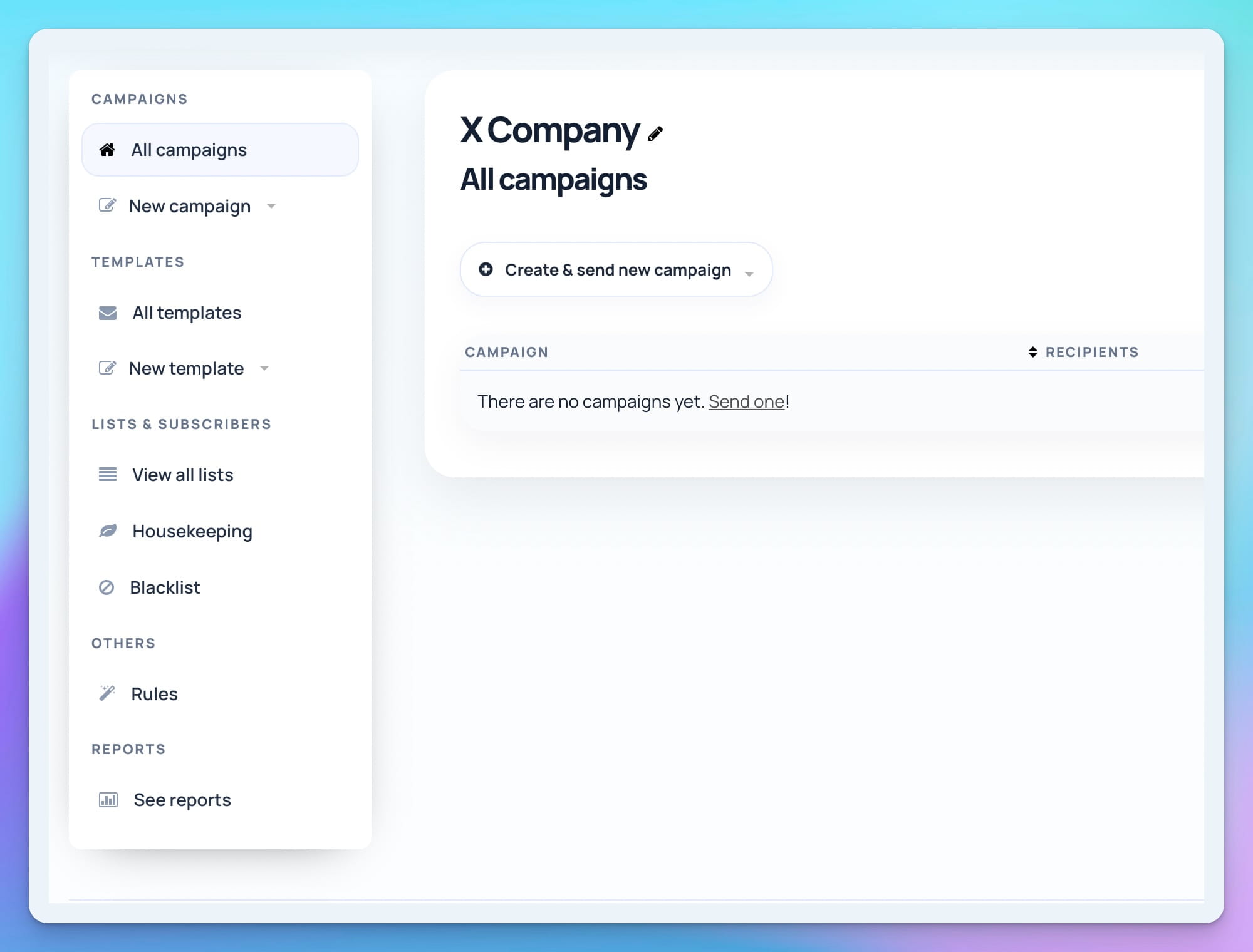
Congratulations! You're all set up.

Log in to your Sendy installation and start adding your first Brand. What are brands? Let's just say you own this company called Widgets Inc. And, you have several products under it. These several "child" products are what we refer to as 'brands'. With brands, you can also setup accounts for each of your clients. Optionally send them a password to login and send newsletters on their own at a price you set.
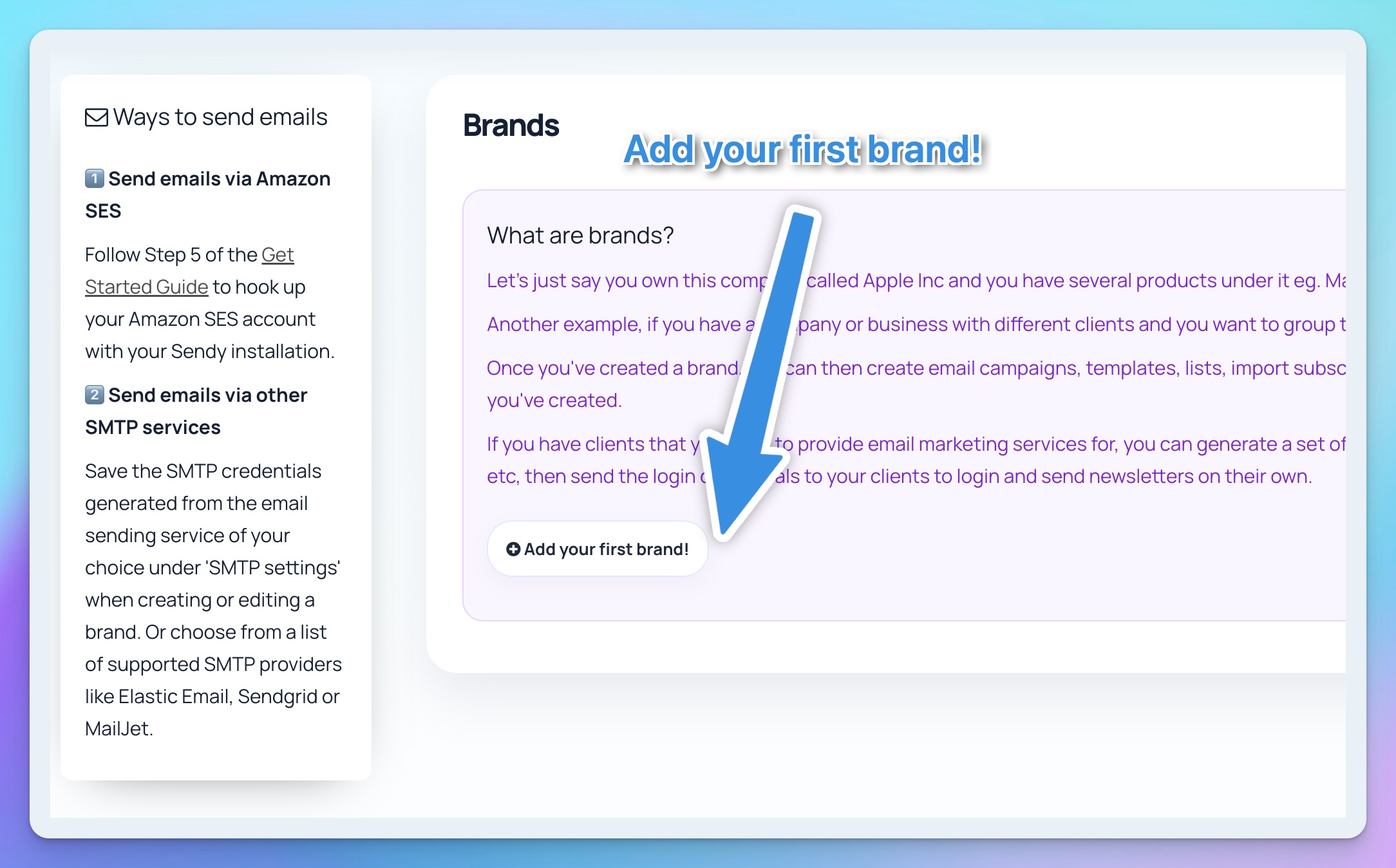
For every new email you wish to use as the sending email address, don't forget to verify it (step 6) as well as register bounces (step 7.5 to 7.7) and complaints (step 8.5 to 8.7) for it.

If you've already verified the sending domain in your Amazon SES console and setup bounces & complaints for it, you don't have to do the same for each email you want to use as the sending email address.

Have fun!


Sendy API

View our API documentation.


Translate Sendy

View our documentation on how to translate Sendy into your own language.

Join our newsletter